My PC Keeps Shutting Down Randomly: What's Going On and How to Fix It
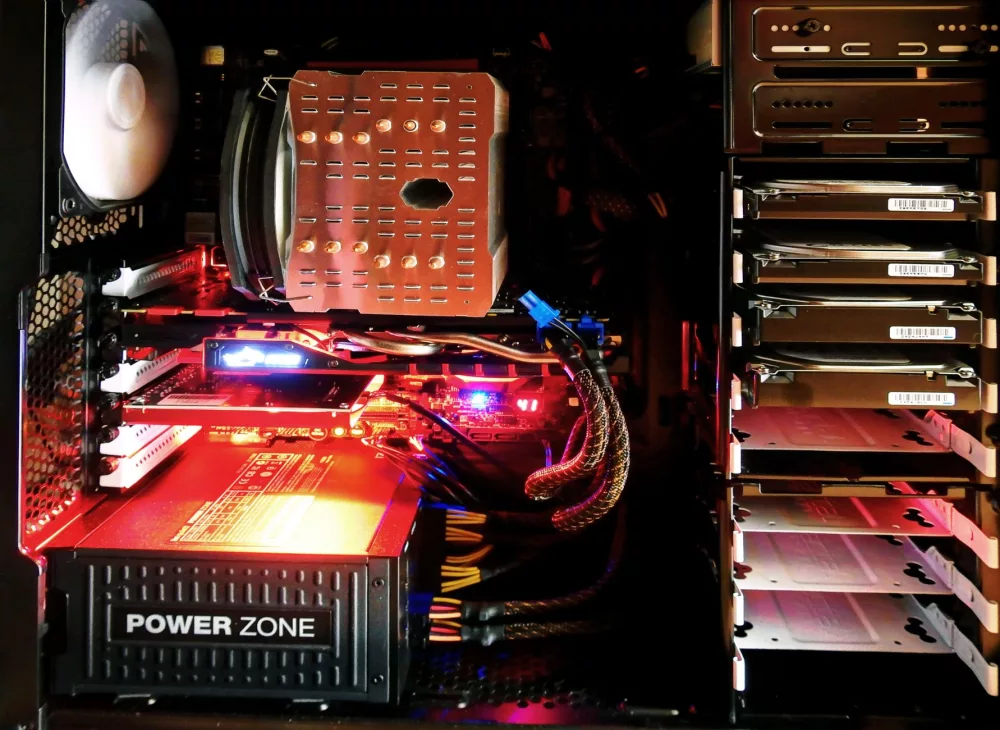
So, you're just minding your own business, maybe deep into a game, tackling some serious work, or just browsing the web, and *poof* – your PC suddenly shuts down. No warning, no blue screen, just silence. It's incredibly frustrating, right? I've been there myself, staring at a blank screen and wondering what just happened. This isn't just an annoyance; it can be a sign of a serious underlying issue that could damage your components if left unaddressed. Let's figure out what's causing your computer to pull this disappearing act and get it running stably again.
The Usual Suspects: Why Your PC Is Shutting Down
When your computer decides to spontaneously power off, it's usually doing it for a good reason – to protect itself. Most modern systems are designed with built-in safeguards to prevent damage. Think of it like an emergency stop button. Our job is to find out what's triggering that button. I usually categorize these issues into a few main areas:
1. Overheating: The Silent Killer
First up, and probably the most common culprit I see, is overheating. Your CPU (Central Processing Unit) and GPU (Graphics Processing Unit) generate a lot of heat, especially when they're working hard. If that heat isn't dissipated effectively, temperatures can reach critical levels, and your system will shut down to prevent permanent damage.
How to Check for Overheating:
- Listen to Your Fans: Are they spinning really fast and loud, or barely at all?
- Touch the Case: Is it unusually hot to the touch, especially near vents?
- Use Monitoring Software: Programs like HWMonitor, Core Temp, or MSI Afterburner can show you real-time temperatures. I always recommend keeping an eye on these during normal use and especially under load.
What You Can Do About It:
I find cleaning is often the best first step. Grab some compressed air and give your internal components a good blast, focusing on CPU heatsinks, GPU fans, and case fans. Make sure all fans are spinning freely. You might also want to reapply thermal paste to your CPU if it hasn't been done in a while – that stuff can dry out and lose effectiveness over time. Better cable management can also improve airflow inside your case.
2. Power Supply Unit (PSU) Problems: The Heart of the Matter
Think of your power supply unit as the heart of your computer. It converts wall AC power into DC power that all your components need. If your PSU isn't providing stable, sufficient power, or if it's failing, your system is just gonna give up. This is particularly true if your PC shuts down under load, like when you're gaming.
Symptoms of a Failing PSU:
- Random Shutdowns: Especially during graphically intense tasks.
- Unusual Noises: A grinding or whining sound from the PSU area.
- System Instability: Random crashes, freezes, or reboots.
Troubleshooting Your PSU:
This one's a bit trickier because testing a PSU without specialized equipment can be risky. If you have a spare PSU, you could try swapping it out, but that's not always practical. Make sure all power cables are securely connected, especially the main 24-pin motherboard connector and the CPU's 4/8-pin connector. Sometimes, it's just a loose connection. If your PSU is old or underpowered for your current components, an upgrade might be necessary. I've seen many cases where an older 500W PSU just couldn't keep up with a new, power-hungry graphics card.
3. RAM Issues: The Memory Lapse
Faulty or improperly seated RAM (Random Access Memory) can absolutely cause random shutdowns or reboots. It might not always be a full shutdown; sometimes you'll get a crash. If your system can't access or write to memory correctly, it's a huge problem.
How to Check Your RAM:
The easiest thing to try first is to reseat your RAM sticks. Turn off your PC, unplug it, open the case, and gently pop out each RAM stick, then push it back in firmly until the clips snap into place. If you have multiple sticks, try running your PC with just one stick at a time to isolate a potentially faulty module. There are also software tools like MemTest86 that you can run from a USB drive to thoroughly check your RAM for errors. This can take a while, but it's worth it.
4. Driver Issues and Software Conflicts: The Digital Gremlins
Sometimes, it's not physical hardware at all, but rather a clash of software or an outdated/corrupt driver causing the problem. A buggy graphics driver, for instance, can wreak havoc, especially when a game or application tries to use the GPU intensely.
What to Do:
- Update Drivers: Make sure your graphics card drivers, chipset drivers, and other essential drivers are up to date. I usually recommend getting them directly from the manufacturer's website (NVIDIA, AMD, Intel, motherboard manufacturer).
- Check Event Viewer: Windows' Event Viewer (just type 'Event Viewer' into the start menu search) can be a treasure trove of information. Look under 'Windows Logs' -> 'System' for critical errors around the time of the shutdown. You might find clues there, like specific driver failures.
- Perform a Clean Boot: If you suspect a software conflict, try performing a clean boot to start Windows with a minimal set of drivers and startup programs. This can help you isolate the problematic software.
5. Motherboard Problems: The Brain's Malfunction
While less common than PSU or overheating issues, a failing motherboard can certainly lead to random shutdowns. This could be due to faulty capacitors, a dying chipset, or other component failures on the board itself. These are typically harder to diagnose without replacing the board.
Signs of a Motherboard Issue:
- Intermittent Problems: The shutdowns might be sporadic and hard to replicate.
- Component Detection Issues: Your PC might randomly stop recognizing peripherals or internal components.
- No POST: Sometimes, it just won't power on at all.
If you've exhausted all other options, and especially if your motherboard is older, this might be what you're dealing with. It's a bummer, but sometimes a replacement is the only way forward.
6. Malware: The Sneaky Saboteur
Although it's not the first thing I think of for random shutdowns, aggressive malware can sometimes cause system instability leading to reboots or shutdowns. It usually tries to hide, so it won't always be obvious.
How to Check:
Run a full scan with a reputable antivirus program. I'd also recommend a secondary scan with an anti-malware tool like Malwarebytes. Better safe than sorry, you know?
7. BIOS/UEFI Settings: The Firmware Follies
Sometimes, incorrect or unstable BIOS/UEFI settings can cause issues. This is especially true if you've been overclocking or messing with voltage settings.
What to Do:
Access your BIOS/UEFI (usually by pressing DEL or F2 during startup) and reset it to default settings. This can often fix unexpected stability problems introduced by custom configurations.
8. Dust Accumulation: The Obvious, Overlooked Enemy
This ties back to overheating, but it deserves its own mention. I've lost count of how many times a simple dusting has solved seemingly complex PC problems. Dust acts as an insulator, trapping heat and reducing the efficiency of your cooling system. It also cakes up fans, preventing them from spinning properly.
Your Action Plan:
Get a can of compressed air. Seriously. Take your computer outside or to a well-ventilated area, open it up, and blast away all that accumulated dust from your fans, heatsinks, and vents. You'll probably be shocked at how much comes out. It's a simple, free fix that often makes a huge difference.
General Troubleshooting Tips I Always Follow
- One Change at a Time: When you're troubleshooting, only change one thing at a time. That way, if the problem stops, you know exactly what fixed it. Otherwise, you'll be even more confused.
- Monitor System Behavior: Pay attention to *when* the shutdowns occur. Is it always under heavy load? When watching videos? At idle? This context is super helpful.
- Check Your Cables: Not just power cables, but also internal data cables. Make sure everything is snug.
- Patience is Key: It can be a frustrating process, but stick with it. These things often take a bit of detective work.
Random shutdowns are a pain, but with a systematic approach, you can usually pinpoint the cause. I always start with the easiest, most common fixes like cleaning and checking temperatures, then gradually move to the more complex stuff. Don't get discouraged, you'll get your system back to normal operation!
About Editorial Team
Senior columnist and culture critic specializing in architectural designs, emerging high-growth systems, and contemporary philosophies.
All Categories
Recent Posts


IBRX Stock: Unpacking ImmunityBio's Journey in the Biotech Landscape